A puzzle that changes when you turn it
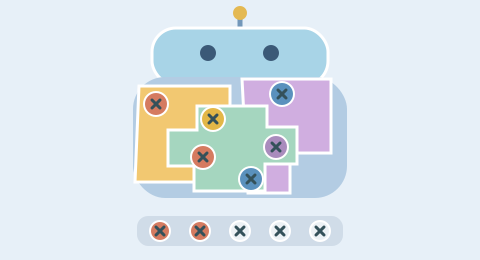
Screw 3D adds a spatial decision to color collection. You are not limited to the front of a flat board: rotate the model to inspect its side, back, top or underside. Each face has its own stack of panels. Removing the exposed panel on one face can reveal another layer there while the other faces remain intact. A color missing from your current view may already be reachable elsewhere. Before spending a temporary slot, turn the cube and check. The model uses actual three-dimensional coordinates projected into the browser view; its orientation changes which faces and screw targets can be selected.
Understand the six-face model
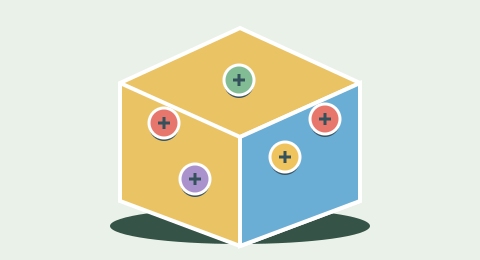
The mechanical cube is an original, simplified object rather than a downloaded competitor model. Its large colored panels make the visible surfaces easy to distinguish. Three screw positions belong to a panel, although a partly cleared layer may have fewer screws left. The screw head’s color and symbol determine its collection destination; the panel tint is a visual aid. A face closer to edge-on becomes harder to inspect, so rotate it toward you before tapping. Back-facing screws are not available through the object. Turn a face toward you before selecting its screws; edge-on targets stay inactive to prevent overlapping touch areas. Once a side is cleared, the remaining body stays visible to help you keep track of orientation. Clearing the visible front alone is not the goal: all six sides must be finished.
Rotate without accidentally removing a screw
On a touch screen, press and drag over the model to change its orientation. A movement threshold separates a deliberate drag from a tap. Releasing after a rotation should not also remove the screw where the gesture began. Short taps select visible screws. The controls above the model offer rotation, tilt, zoom and a view reset, so you can inspect the object without relying exclusively on dragging. Keyboard users can operate those buttons and then Tab through the current visible targets. Reset view changes the camera only. It does not replace the layout, restore removed screws or spend an Undo.
The boxes keep rotation purposeful
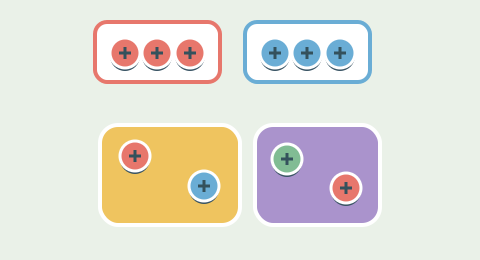
Rotation is a way to gather information; it does not itself count as a screw move. Two open color boxes show the screws currently wanted. Each accepts three matching screws before the next order appears. A screw without a matching open box occupies temporary storage. When an order changes, compatible waiting screws can enter it automatically. This means you should inspect both the object and the containers after a successful pickup. You may discover that a color previously worth avoiding has become your best target. Searching another face can preserve a slot that would otherwise be spent on a speculative front-facing screw.
Level 1: learn every side
The warm-up uses a small set of panels and a limited color palette. Begin with the visible model, collect one matching screw, and then rotate rather than immediately tapping everything in front. Try the tilt button to see the top or underside. The lesson is complete when you understand that a missing match can be out of view without being buried. You do not need to memorize a gesture sequence: orientation is freely adjustable throughout play. The Reset view button is useful if several rotations leave you unsure which direction you are facing. The board state remains exactly where you left it.
Level 2: depth as well as direction
The expert layout has 216 screws distributed across the six face stacks, seven possible colors and five temporary slots before Rescue. Each face can expose a new panel after its outer layer is cleared. The challenge combines order management, surface visibility and the cost of uncovering deeper layers. A complete construction route is checked when the seed is generated, but arbitrary choices can still exhaust space. You can start directly at Level 2 and take as long as you need; no countdown forces a rushed gesture. The intended difficulty is high, while any numerical human pass rate remains unverified until player testing supplies evidence.
Inspect before you commit
A useful scan is front, side, back, opposite side, then top and bottom. You do not have to perform a full tour before every move, but it is worth doing when the visible face offers only unmatched colors. Compare unfinished panels as well as individual screws. A panel with one screw left may reveal a more useful layer, while another panel with two matching screws can advance an order without using storage. Neither choice is always correct. The key is to know what alternatives are visible across the object before assuming that an awkward pickup is necessary.
Use helpers without losing your bearings
A safe Hint may refer to a screw on a face that is not currently visible. Rotate the model to find its outline; the game does not remove the screw for you. Undo restores the previous collection state and panel state, but camera movement is not a consumable move. The Level 2 Rescue adds one temporary slot once per run. It can reopen play after the buffer fills, although you must still solve the remaining order problem. Retry rebuilds the same seed and returns to the default viewing angle. If you only need a more familiar angle, choose Reset view instead of restarting the puzzle.
A deliberate visual pace
The object stays under your control while you inspect it. Removing a screw has a short visual response, and a cleared panel receives a slower falling transition so the layer change is readable. The move is locked while its transition resolves, preventing rapid taps from collecting the same screw twice. Reduced-motion preferences shorten the movement involved in ordinary moves. The result screen has its own animation control. This balance keeps the model responsive without turning every layer removal into an abrupt disappearance. The visual transition illustrates the state change; the deterministic rule engine remains the authority for which screws were removed.
Local play, recovery and sharing
The versioned seed and action history are saved on this device when browser storage is available. A return visit can restore the run; clearing site data removes that local record. Share creates a fresh-start link for the same arrangement, including the selected level. Level 1 is available to guests; Level 2 and all helpers require sign-in. A signed-in verified run uses account inventory and earns 2 Points for Level 1 or 10 for Level 2. Guest Level 1 progress stays local. If a browser cannot copy a link automatically, the game offers a selectable URL. For a visual problem, include the seed, viewing angle and device when reporting it so the relevant face can be reproduced.
A worked example: a match just out of view
Imagine that the open boxes request blue and gold, but the front panel shows only coral and violet. Removing a front screw would spend temporary capacity. Before doing that, rotate toward the side and then tilt the object. If a blue screw appears, turn that face toward you until its target becomes active and collect it. Now inspect the boxes again: completing the blue order may make coral useful after all. The earlier front-facing obstacle has changed without forcing a speculative pickup. If no requested color is exposed anywhere, compare nearly cleared panels on all six sides and select the smallest deliberate storage cost. The controls do not require rapid gestures. A slow inspection followed by one intentional tap is often more informative than several quick turns and uncertain clicks.
Screw 3D FAQ
Is this a rotating model or a flat board?+
The model uses three-dimensional face and screw coordinates projected into the view. Rotation changes the visible faces and the available click targets.
How do I see the back?+
Drag horizontally or use the rotation buttons. Tilt changes the vertical viewing angle so you can inspect the top and underside.
Can dragging remove a screw accidentally?+
The controls distinguish a drag from a tap using a movement threshold. A completed drag does not also collect its starting screw.
Does Reset view restart the level?+
No. It only restores the camera angle and zoom. Removed screws, orders and temporary slots stay unchanged.
Why is the highlighted Hint not visible?+
Its screw may be on another face. Rotate the object to locate the highlighted target.
How do I win?+
Clear all screws on all six sides and finish the collection orders. Clearing just the front face is not enough.
What changes in Level 2?+
There are deeper face stacks, more colors, 216 screws and a tighter five-slot temporary buffer. The collection and rotation rules remain the same.
Are there video rewards?+
No video-reward provider is connected to this release. Restarting does not require an advertisement.
Does 3D play award verified points?+
Yes. Sign in before a fresh run. Verified Level 1 clears earn 2 Points and Level 2 clears earn 10. Guest practice does not earn Points.
Can I use a keyboard?+
Yes. Tab through rotation, tilt, view and visible screw controls, and activate buttons using Enter or Space.